


Default stages
First access shows a standard pipeline:- Prospect — newly identified opportunity
- Qualified — verified lead (budget, authority, need, timing)
- Proposal — quote sent
- Negotiation — active negotiation on terms
- Won
- Lost
Customise stages
1
Open pipeline settings
Settings → Pipeline → select the pipeline to modify.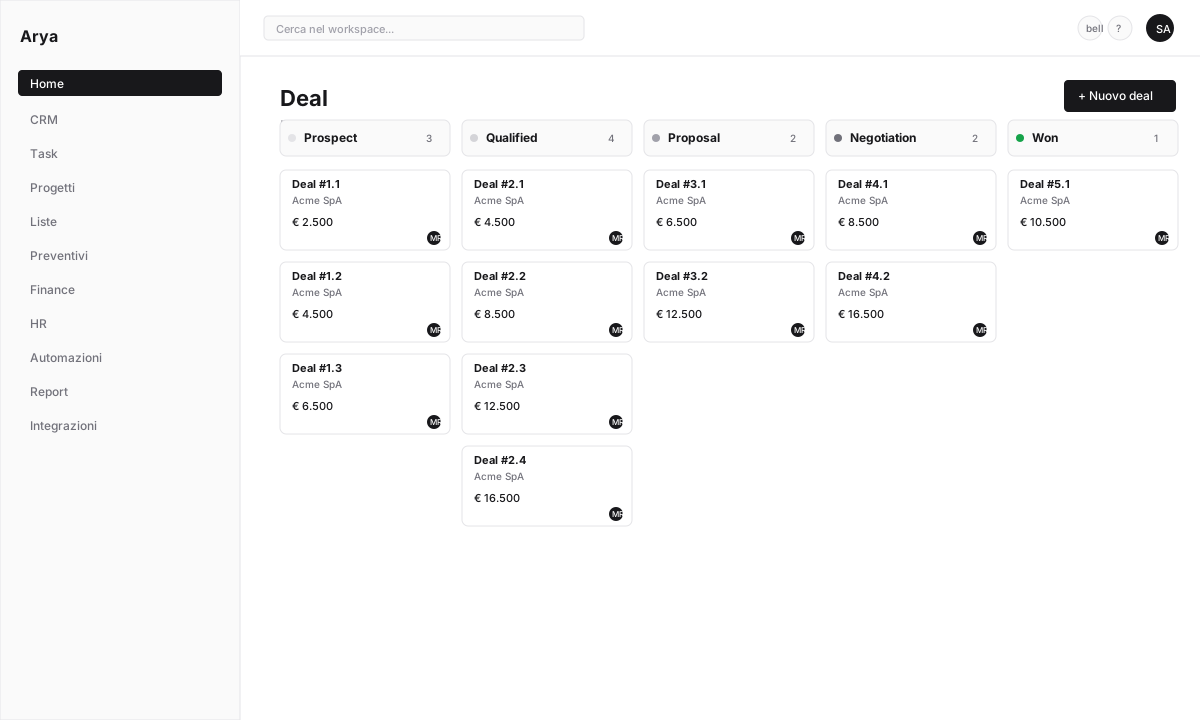
2
Add, rename or remove stages
Click + New stage at the bottom. For each stage set:
- Name: visible on Kanban cards
- Colour: for quick scanning
- Type:
Open,Won,Lost.Wonstages feed revenue reports;Loststages feed churn analysis.
3
Set maximum time (optional)
For each stage you can define an SLA: if a deal stays more than N days, Arya highlights it in red on the Kanban. Useful for spotting stalled deals.
4
Reorder
Drag-and-drop to reorder. Order left-to-right on the Kanban.
Multiple pipelines
If you have different sales processes (e.g. retail product A vs enterprise product B), create multiple pipelines:1
New pipeline
Settings → Pipeline → + New pipeline. Name it (e.g.
Enterprise 6+ months) and create specific stages.2
Assign deals
When creating a deal, pick which pipeline from the top-left selector of the Kanban.
3
Switch between pipelines
The top selector filters the Kanban on the chosen pipeline. Filters and saved views are per-pipeline.
Kanban features
Drag-and-drop
Drag-and-drop
Drag cards between columns to change stage. Arya updates history instantly.
Quick filters
Quick filters
Top bar filters by owner, value, tag, date. Example:
Only my deals > €20,000 closing this month.Column totals
Column totals
Each column header shows deal count and total value (weighted by probability if enabled).
Customise the card
Customise the card
Settings → Pipeline → Card layout to pick which fields show on the Kanban card (value, company, close date, owner, tags).
Change visualisation
Change visualisation
Top right switches between Kanban, Table, Calendar (by close date), Gantt (for linked projects).
Forecast view
From the Kanban click Forecast view in the top right. Groups deals by forecast month/quarter, shows weighted value and compares with target.
Frequently asked questions
Can I move a deal between pipelines?
Can I move a deal between pipelines?
Yes. Open the deal → ⋯ → Change pipeline. Arya maps automatically to the equivalent stage if it exists, otherwise places it in the first stage of the new pipeline.
What happens to time accumulated in previous stages?
What happens to time accumulated in previous stages?
History is preserved. Changing pipeline doesn’t erase past transitions.
Can I have different permissions per pipeline?
Can I have different permissions per pipeline?
Yes. Settings → Pipeline → Permissions to restrict access per pipeline (e.g. only the enterprise team sees the enterprise pipeline).