


Create a deal
1
Open Deals
Click CRM → Deals in the sidebar, then + New deal top right.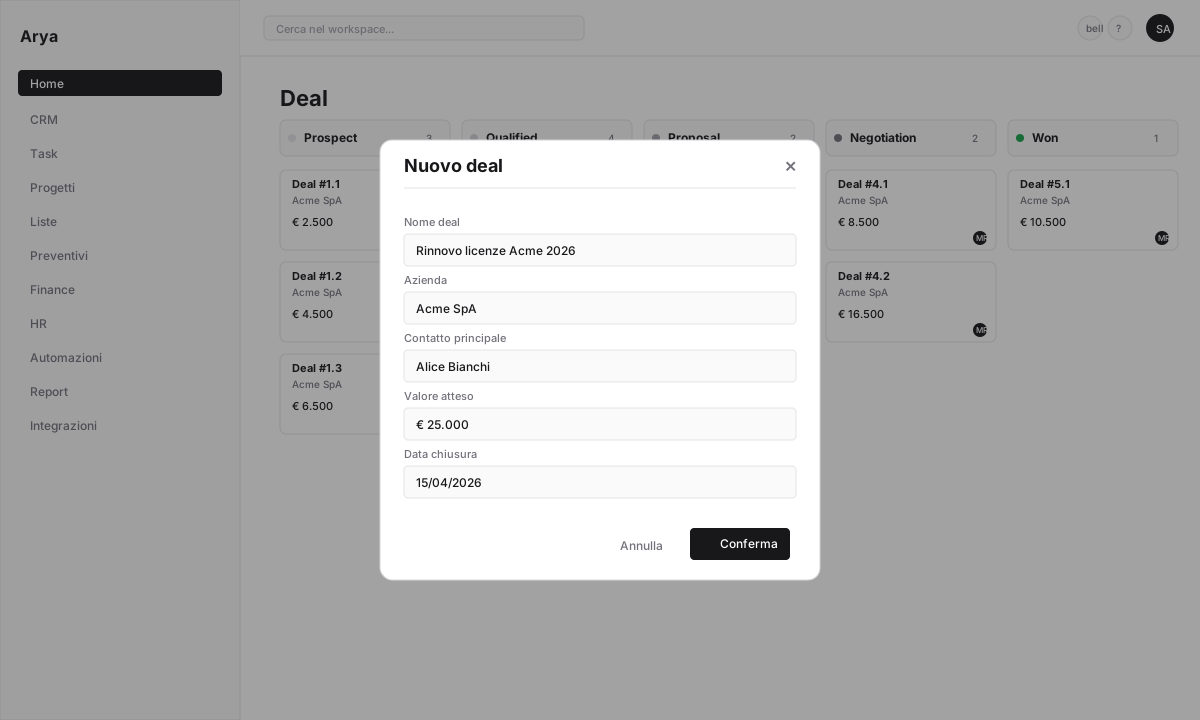
2
Fill required fields
- Deal name: descriptive and unique (e.g.
Acme SaaS renewal 2026) - Company: search or create on the fly
- Owner: who owns the deal
3
Add commercial data
- Expected value: amount in workspace currency
- Probability (%): estimate of closing
- Estimated close date
- Lead source: inbound, outbound, referral, event, partner
4
Link contacts
Add one or more contacts (buyer, technical decision-maker, procurement). Mark who is the primary contact — Arya uses them as default recipient for emails and quotes.
5
Save
The deal appears in the pipeline at stage
Prospect (or the first stage of the selected pipeline).Main fields
You can add custom fields (industry, competitor, customer budget, etc.) in Settings → Objects → Deal. See Attributes.
Common actions
Move a deal across stages
Move a deal across stages
Drag-and-drop: drag the Kanban card between columns.
Keyboard: select the deal (arrow keys), press
m to change stage.
From detail: click the current stage in the header → pick a new stage.Every change is logged with user, date and duration in the previous stage.Bulk edit
Bulk edit
From the deals table, select multiple rows with checkboxes, click Actions → Edit. Change stage, owner, tags, dates in batch.
Merge duplicates
Merge duplicates
If a customer has two identical deals, open them, click ⋯ → Merge with another deal. Arya keeps the older deal and moves activity, notes and contacts from the other.
Archive a deal
Archive a deal
For deals no longer active that you don’t want to mark
Lost, click ⋯ → Archive. Hidden from views, kept in history.Export
Export
From the table view click Actions → Export → Excel or CSV. Export respects active filters.
Bulk import
Bulk import
⋯ → Import from CSV/Excel. Arya helps you map columns to fields. Preview before commit, rollback on error.
Activity and history
Every deal has a timeline that logs automatically:- Stage changes with date and duration
- Sent/received emails (with Gmail connected)
- Recorded calls (with Call Intelligence)
- Created/completed tasks
- Generated quotes
- Team notes and comments
Related automations
Notify on stage change
When a deal moves to
Negotiation, notify the sales manager.Automatic follow-up task
Create a “call back within 3 days” task if a deal stays 7+ days in the same stage.
Generate project on Won
Won → automatic project creation with budget from the quote.
Slack to the team
Celebrate wins: auto message to #sales when the deal moves to
Won.Frequently asked questions
Can I have multiple pipelines?
Can I have multiple pipelines?
Yes. Configure multiple pipelines in Settings → Pipeline (e.g. retail, enterprise, partnerships). Each deal belongs to one pipeline.
How does Arya calculate the forecast?
How does Arya calculate the forecast?
Forecast = Sum of
value × probability for all open deals in the period. See Sales reports.Can I restrict visibility of a deal?
Can I restrict visibility of a deal?
Yes. Set the deal as private or limit to a specific team from ⋯ → Permissions. Admins always see everything.
What happens to a lost deal?
What happens to a lost deal?
Stays in the workspace with
Lost stage and loss reason. You can reopen it anytime by moving it to an open stage.