> ## Documentation Index
> Fetch the complete documentation index at: https://docs.arya.so/llms.txt
> Use this file to discover all available pages before exploring further.
# Quickstart
> Activate your workspace and complete the first end-to-end flow in 10 minutes.
This guide takes you from creating a workspace to closing your first deal and issuing your first invoice. If you're new to Arya and want to see if it fits, this is the place to start. For a more detailed path use [Arya 101](/en/arya-101/overview).
## Prerequisites
Only a business email is required. No credit card needed to start.
## Create the workspace and invite your team
Go to [arya.so/signup](https://arya.so/signup), enter your email and workspace name. You'll receive a confirmation email.
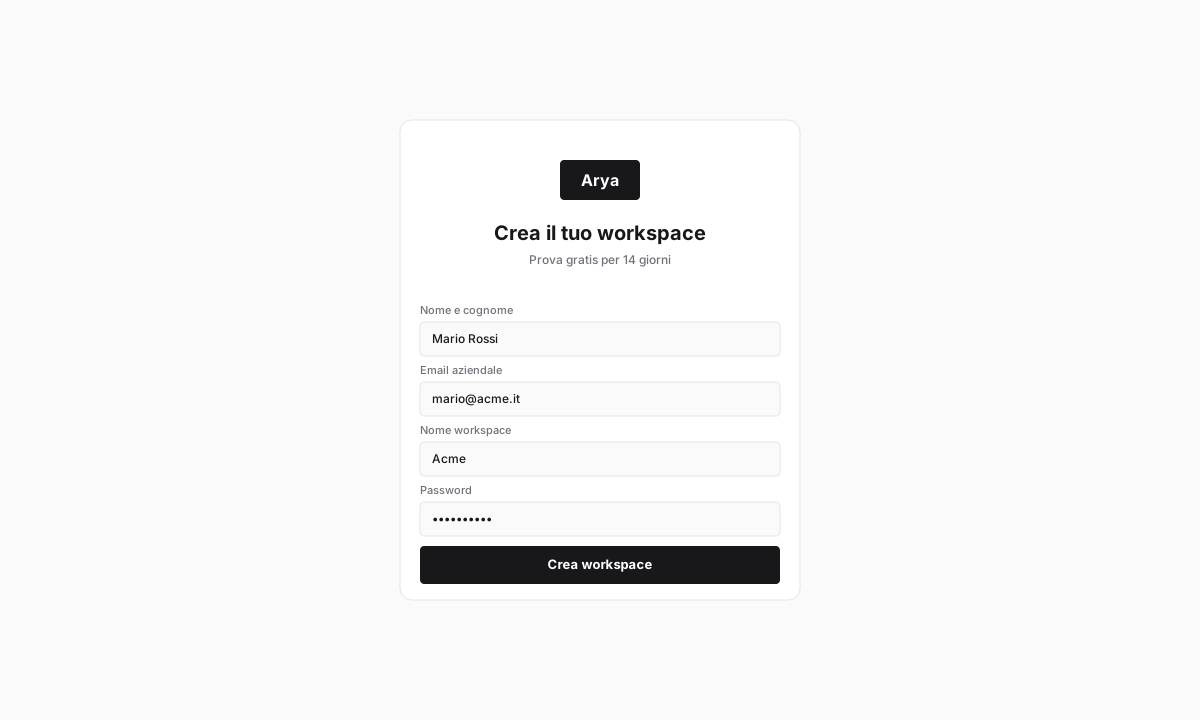 On first access Arya asks for company name, VAT number (*partita IVA*) and default currency. If you have a *codice SDI* or PEC address, add them now — they're needed for Italian e-invoicing.
In **Settings → Team and roles**, enter the emails of your colleagues. Pick a role: `Admin`, `Manager`, `User` or `Read-only`.
You can invite up to 5 team members free during trial.
## First CRM deal
Click **CRM** in the left sidebar. The Kanban pipeline shows default stages: `Prospect`, `Qualified`, `Proposal`, `Negotiation`, `Won`, `Lost`.
Click **+ New deal** in the top right. Fill in deal name, customer company (Arya creates it if missing), expected value, close date.
On first access Arya asks for company name, VAT number (*partita IVA*) and default currency. If you have a *codice SDI* or PEC address, add them now — they're needed for Italian e-invoicing.
In **Settings → Team and roles**, enter the emails of your colleagues. Pick a role: `Admin`, `Manager`, `User` or `Read-only`.
You can invite up to 5 team members free during trial.
## First CRM deal
Click **CRM** in the left sidebar. The Kanban pipeline shows default stages: `Prospect`, `Qualified`, `Proposal`, `Negotiation`, `Won`, `Lost`.
Click **+ New deal** in the top right. Fill in deal name, customer company (Arya creates it if missing), expected value, close date.
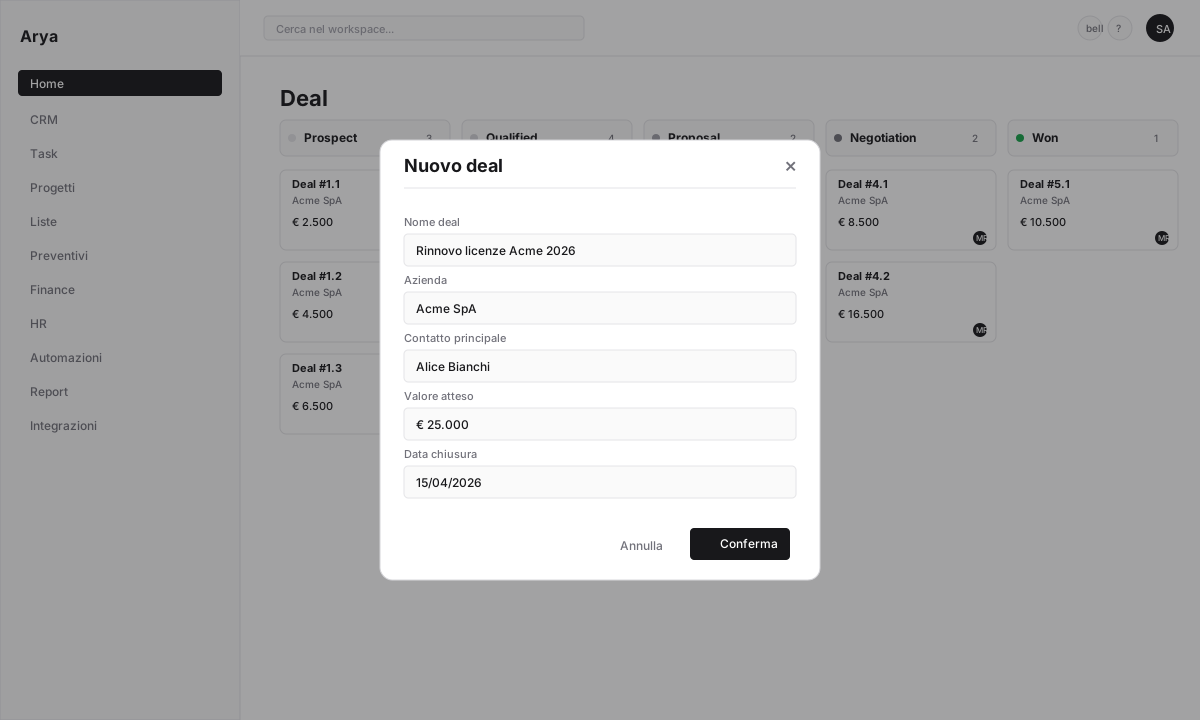 Drag the card between stages with your mouse. Each move is tracked in history and can trigger automations.
## Generate and send a quote
Click the deal card. Go to the **Quotes** tab.
Click **+ New quote**. Choose a format:
* **Classic**: static PDF
* **Clauses**: contract with digital signatures
* **Sales Room**: interactive page with sections, video and FAQs
Use `Classic` for the first test.
Pick products/services from the price list, set quantity, unit price and discount. Totals with VAT update automatically.
Click **Publish**. Arya generates a unique public link you send to the customer via email or WhatsApp. Every view and every section opened is tracked.
## Close the deal and issue an invoice
The customer digitally signs the quote from the public page. Arya sets quote status to `Accepted` and notifies you.
Back in CRM, drag the deal to the `Won` stage. The deal value enters forecasting and reports automatically.
From the deal menu click **Convert to invoice**. Arya fills customer data, taxable amount and VAT from the quote. Review and click **Issue**.
If the SDI integration is configured, the invoice is sent directly to the *Sistema di Interscambio* (Italy's official e-invoicing hub). Otherwise it stays as `Draft` for manual sending.
## What you learned
You created a workspace and invited your team
You created your first CRM deal
You generated and sent a quote with a public link
You closed the deal and issued your first invoice
## Next steps
Ten short lessons on the main features.
Automate notifications, follow-ups and project creation.
Deal emails tracked automatically.
iOS, Android, push notifications, NFC clock-in.
Drag the card between stages with your mouse. Each move is tracked in history and can trigger automations.
## Generate and send a quote
Click the deal card. Go to the **Quotes** tab.
Click **+ New quote**. Choose a format:
* **Classic**: static PDF
* **Clauses**: contract with digital signatures
* **Sales Room**: interactive page with sections, video and FAQs
Use `Classic` for the first test.
Pick products/services from the price list, set quantity, unit price and discount. Totals with VAT update automatically.
Click **Publish**. Arya generates a unique public link you send to the customer via email or WhatsApp. Every view and every section opened is tracked.
## Close the deal and issue an invoice
The customer digitally signs the quote from the public page. Arya sets quote status to `Accepted` and notifies you.
Back in CRM, drag the deal to the `Won` stage. The deal value enters forecasting and reports automatically.
From the deal menu click **Convert to invoice**. Arya fills customer data, taxable amount and VAT from the quote. Review and click **Issue**.
If the SDI integration is configured, the invoice is sent directly to the *Sistema di Interscambio* (Italy's official e-invoicing hub). Otherwise it stays as `Draft` for manual sending.
## What you learned
You created a workspace and invited your team
You created your first CRM deal
You generated and sent a quote with a public link
You closed the deal and issued your first invoice
## Next steps
Ten short lessons on the main features.
Automate notifications, follow-ups and project creation.
Deal emails tracked automatically.
iOS, Android, push notifications, NFC clock-in.