> ## Documentation Index
> Fetch the complete documentation index at: https://docs.arya.so/llms.txt
> Use this file to discover all available pages before exploring further.
# Kanban pipeline
> Customise stages, create multiple pipelines and use the drag-and-drop view.
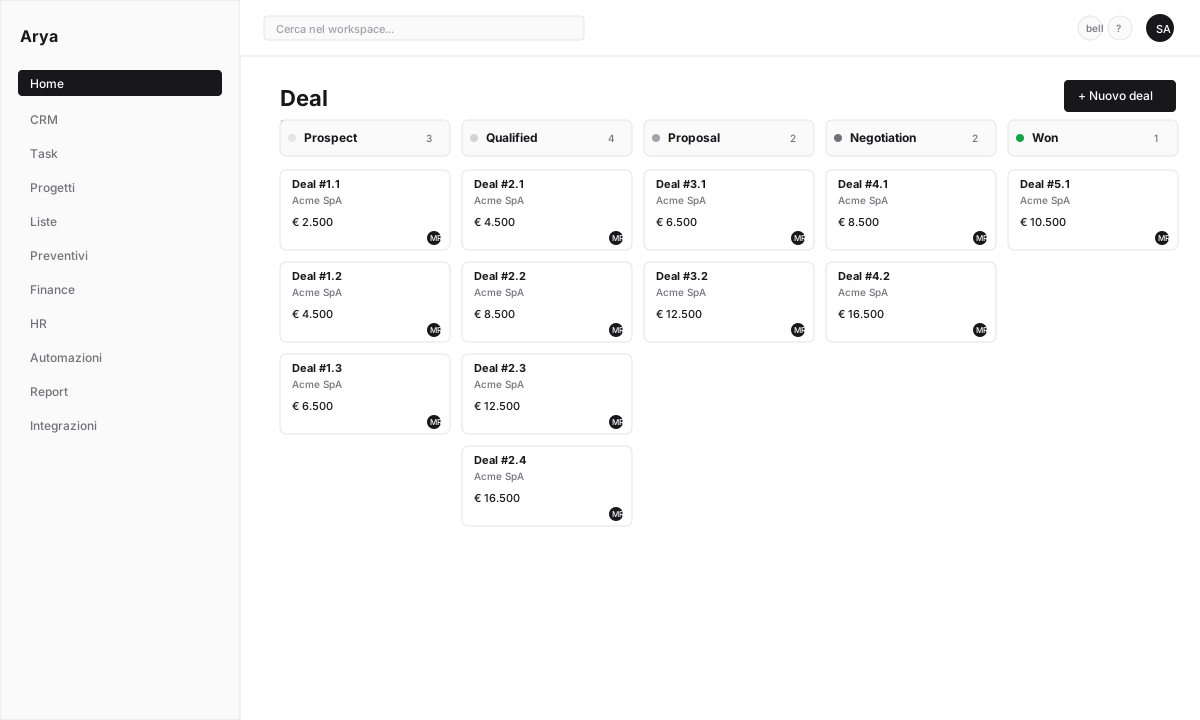
The Kanban pipeline is the main way your sales team visualises the funnel. Each **stage** is a column; each **deal** is a card that moves between columns until closing.
 ## Default stages
First access shows a standard pipeline:
1. **Prospect** — newly identified opportunity
2. **Qualified** — verified lead (budget, authority, need, timing)
3. **Proposal** — quote sent
4. **Negotiation** — active negotiation on terms
5. **Won**
6. **Lost**
These are just a starting point — you can change them completely.
## Customise stages
**Settings → Pipeline** → select the pipeline to modify.
## Default stages
First access shows a standard pipeline:
1. **Prospect** — newly identified opportunity
2. **Qualified** — verified lead (budget, authority, need, timing)
3. **Proposal** — quote sent
4. **Negotiation** — active negotiation on terms
5. **Won**
6. **Lost**
These are just a starting point — you can change them completely.
## Customise stages
**Settings → Pipeline** → select the pipeline to modify.
 Click **+ New stage** at the bottom. For each stage set:
* **Name**: visible on Kanban cards
* **Colour**: for quick scanning
* **Type**: `Open`, `Won`, `Lost`. `Won` stages feed revenue reports; `Lost` stages feed churn analysis.
For each stage you can define an **SLA**: if a deal stays more than N days, Arya highlights it in red on the Kanban. Useful for spotting stalled deals.
Drag-and-drop to reorder. Order left-to-right on the Kanban.
## Multiple pipelines
If you have different sales processes (e.g. retail product A vs enterprise product B), create **multiple pipelines**:
**Settings → Pipeline → + New pipeline**. Name it (e.g. `Enterprise 6+ months`) and create specific stages.
When creating a deal, pick which pipeline from the top-left selector of the Kanban.
The top selector filters the Kanban on the chosen pipeline. Filters and saved views are per-pipeline.
## Kanban features
Drag cards between columns to change stage. Arya updates history instantly.
Top bar filters by owner, value, tag, date. Example: `Only my deals > €20,000 closing this month`.
Each column header shows deal count and total value (weighted by probability if enabled).
Left/right arrows move selection between deals in the same column. `Enter` opens detail. `m` moves the selected deal to the next stage.
**Settings → Pipeline → Card layout** to pick which fields show on the Kanban card (value, company, close date, owner, tags).
Top right switches between **Kanban**, **Table**, **Calendar** (by close date), **Gantt** (for linked projects).
## Forecast view
From the Kanban click **Forecast view** in the top right. Groups deals by forecast month/quarter, shows weighted value and compares with target.
Click **+ New stage** at the bottom. For each stage set:
* **Name**: visible on Kanban cards
* **Colour**: for quick scanning
* **Type**: `Open`, `Won`, `Lost`. `Won` stages feed revenue reports; `Lost` stages feed churn analysis.
For each stage you can define an **SLA**: if a deal stays more than N days, Arya highlights it in red on the Kanban. Useful for spotting stalled deals.
Drag-and-drop to reorder. Order left-to-right on the Kanban.
## Multiple pipelines
If you have different sales processes (e.g. retail product A vs enterprise product B), create **multiple pipelines**:
**Settings → Pipeline → + New pipeline**. Name it (e.g. `Enterprise 6+ months`) and create specific stages.
When creating a deal, pick which pipeline from the top-left selector of the Kanban.
The top selector filters the Kanban on the chosen pipeline. Filters and saved views are per-pipeline.
## Kanban features
Drag cards between columns to change stage. Arya updates history instantly.
Top bar filters by owner, value, tag, date. Example: `Only my deals > €20,000 closing this month`.
Each column header shows deal count and total value (weighted by probability if enabled).
Left/right arrows move selection between deals in the same column. `Enter` opens detail. `m` moves the selected deal to the next stage.
**Settings → Pipeline → Card layout** to pick which fields show on the Kanban card (value, company, close date, owner, tags).
Top right switches between **Kanban**, **Table**, **Calendar** (by close date), **Gantt** (for linked projects).
## Forecast view
From the Kanban click **Forecast view** in the top right. Groups deals by forecast month/quarter, shows weighted value and compares with target.
 ## Frequently asked questions
Yes. Open the deal → **⋯ → Change pipeline**. Arya maps automatically to the equivalent stage if it exists, otherwise places it in the first stage of the new pipeline.
History is preserved. Changing pipeline doesn't erase past transitions.
Yes. **Settings → Pipeline → Permissions** to restrict access per pipeline (e.g. only the enterprise team sees the enterprise pipeline).
## Frequently asked questions
Yes. Open the deal → **⋯ → Change pipeline**. Arya maps automatically to the equivalent stage if it exists, otherwise places it in the first stage of the new pipeline.
History is preserved. Changing pipeline doesn't erase past transitions.
Yes. **Settings → Pipeline → Permissions** to restrict access per pipeline (e.g. only the enterprise team sees the enterprise pipeline).