> ## Documentation Index
> Fetch the complete documentation index at: https://docs.arya.so/llms.txt
> Use this file to discover all available pages before exploring further.
# Lesson 8 — Your first automation
> Build a workflow: deal won → create project + Slack notification + customer email.
**Lesson 8 of 10** · \~6 minutes · Prerequisite: [Lesson 7 — Quotes and invoicing](/en/arya-101/lesson-7-quotes-and-invoicing)
## What you'll learn
* How Arya's automation engine works
* How to build a visual workflow
* How to test it and monitor its runs
## How it works
A **workflow** is a sequence of actions that starts when a **trigger** fires. Shape:
```
Trigger (when X happens) → Condition (if Y) → Action (do Z)
```
You can chain multiple actions, add conditional branches, use variables and record references.
## Available triggers
Whenever a record is created, modified or deleted. Filters per field.
When a record changes status (e.g. deal → Won, invoice → Paid).
On a schedule: hourly, daily at 9am, every Monday, etc.
Public URL you receive from external systems (Zapier, Make, custom APIs).
An Arya public form is submitted.
An email arrives at a monitored address.
The workflow runs only when triggered manually from a record or list.
## Available actions
30+ actions grouped as: record (create, update, delete, duplicate), communication (email, SMS, Slack, WhatsApp, Telegram), integrations (DocuSign, FatturaInCloud, Google Calendar), flow (condition, branch, wait, loop), data (transform, compute, outgoing webhook).
## Build your first workflow
Example: *"When I close a deal as won, create a project and notify #sales on Slack"*.
Click **Automations** in the sidebar → **+ New workflow**.
Select **Status changed** on the `Deal` object.
* Object: `Deal`
* Field: `Stage`
* From: any
* To: `Won`
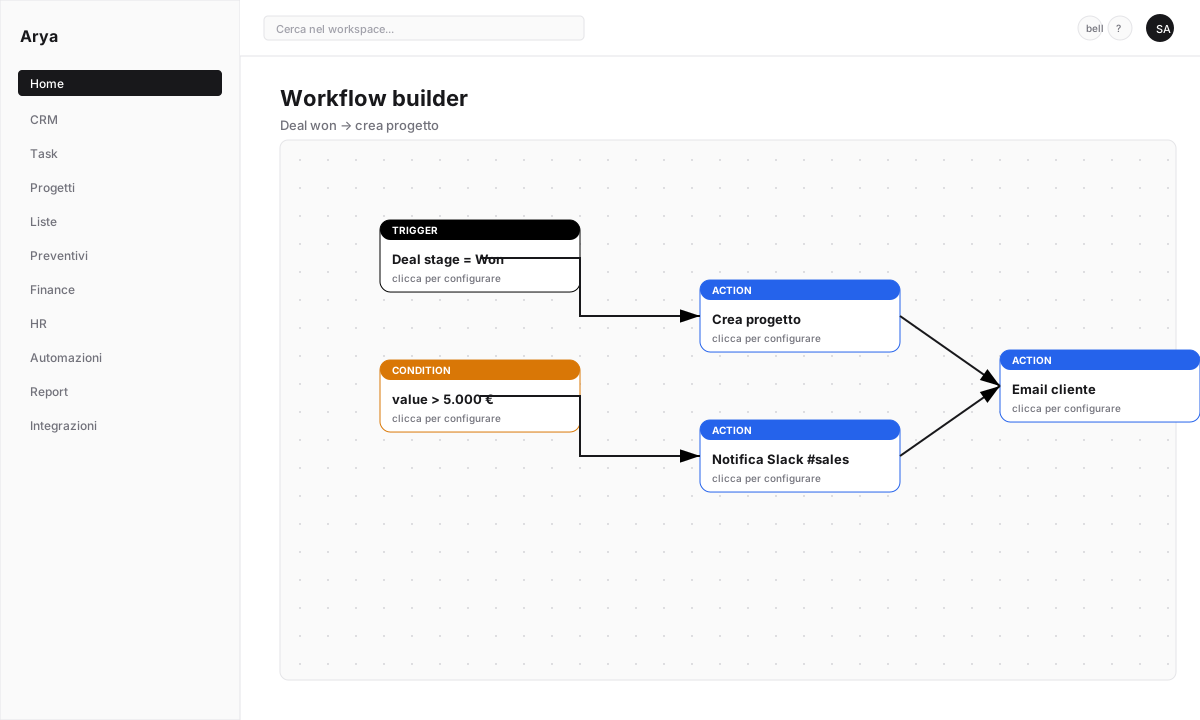 Click **+ Action** → select **Create record** → object `Project`.
Map fields:
* Project name: `{{trigger.deal.name}}`
* Customer: `{{trigger.deal.company}}`
* Budget: `{{trigger.deal.value}}`
* Start date: `{{now}}`
Click **+ Action** → **Send Slack message** → channel `#sales`.
Message:
```
🎉 Deal won! {{trigger.deal.name}} — {{trigger.deal.value}} €
Customer: {{trigger.deal.company.name}}
Owner: {{trigger.deal.owner.name}}
Project created: {{output.project.url}}
```
Slack requires an active integration — see [Slack integration](/en/integrations/slack).
Click **+ Action** → **Send email** → to `{{trigger.deal.primary_contact.email}}`.
Use a saved template or write inline. Attachments: you can include the accepted quote.
Click **Save** → toggle **Active**. The workflow starts firing on the next matching events.
## Test before production
Before activating, click **Run in test** → pick a sample record. Arya simulates all actions showing inputs and outputs without real side effects.
Activating with the **Dry run** flag logs actions without executing them. Useful for validating on real data.
## Monitoring and debugging
The **Run history** section shows every execution:
* Date/time
* Trigger record
* Status: `Success`, `Error`, `Cancelled`
* Duration
* Detailed log per action
Click **+ Action** → select **Create record** → object `Project`.
Map fields:
* Project name: `{{trigger.deal.name}}`
* Customer: `{{trigger.deal.company}}`
* Budget: `{{trigger.deal.value}}`
* Start date: `{{now}}`
Click **+ Action** → **Send Slack message** → channel `#sales`.
Message:
```
🎉 Deal won! {{trigger.deal.name}} — {{trigger.deal.value}} €
Customer: {{trigger.deal.company.name}}
Owner: {{trigger.deal.owner.name}}
Project created: {{output.project.url}}
```
Slack requires an active integration — see [Slack integration](/en/integrations/slack).
Click **+ Action** → **Send email** → to `{{trigger.deal.primary_contact.email}}`.
Use a saved template or write inline. Attachments: you can include the accepted quote.
Click **Save** → toggle **Active**. The workflow starts firing on the next matching events.
## Test before production
Before activating, click **Run in test** → pick a sample record. Arya simulates all actions showing inputs and outputs without real side effects.
Activating with the **Dry run** flag logs actions without executing them. Useful for validating on real data.
## Monitoring and debugging
The **Run history** section shows every execution:
* Date/time
* Trigger record
* Status: `Success`, `Error`, `Cancelled`
* Duration
* Detailed log per action
 If an action fails (e.g. Slack offline), Arya can retry automatically based on your policy.
## Exposed webhooks
To trigger a workflow from an external system, Arya generates a unique webhook URL. Paste it into Zapier/Make/custom systems — each POST call starts the workflow with the received payload.
## Verify
You created a workflow with at least one trigger and one action
You tested in test mode before activating
You know where to check run history
## Next lesson
Visualise data with custom dashboards and charts.
If an action fails (e.g. Slack offline), Arya can retry automatically based on your policy.
## Exposed webhooks
To trigger a workflow from an external system, Arya generates a unique webhook URL. Paste it into Zapier/Make/custom systems — each POST call starts the workflow with the received payload.
## Verify
You created a workflow with at least one trigger and one action
You tested in test mode before activating
You know where to check run history
## Next lesson
Visualise data with custom dashboards and charts.