> ## Documentation Index
> Fetch the complete documentation index at: https://docs.arya.so/llms.txt
> Use this file to discover all available pages before exploring further.
# Lesson 7 — Quotes and invoicing
> Generate your first quote, share it with a public link, convert it to a fattura elettronica.
**Lesson 7 of 10** · \~6 minutes · Prerequisite: [Lesson 6 — Tasks and projects](/en/arya-101/lesson-6-tasks-and-projects)
## What you'll learn
* How to create a quote in the three available formats
* How to send it via public link and track views
* How to convert it into a *fattura elettronica* (Italian e-invoice) sent to SDI
## The three quote types
Arya lets you choose between three formats:
Static, clean PDF in traditional offer style. Good for RFPs and formal requests.
Contract with mandatory/optional clauses and qualified digital signature. For sales with legal terms.
Interactive web page with sections, video, pricing, FAQs, testimonials. For complex consultative sales.
## Create a quote
Open the deal (or project) → **Quotes** tab → **+ New quote**.
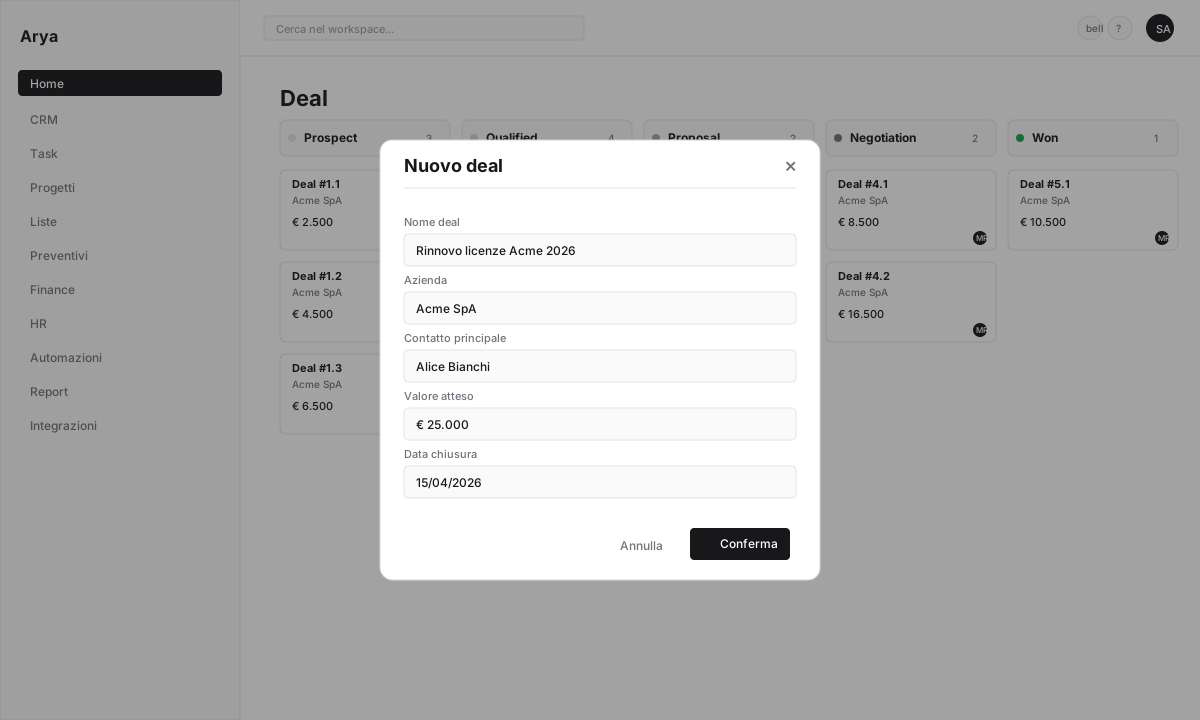 Select `Classic`, `Clauses` or `Sales Room`. Choose a template or start from scratch.
Pick products/services from the price list or insert free-form lines. For each line:
* Quantity
* Unit price (prefilled from the price list)
* Discount (%, amount, or per row)
* VAT rate (*IVA*; default 22%)
Totals with VAT update in real time.
Add notes, payment terms, offer validity, clauses (for `Clauses`) or multimedia sections (for `Sales Room`).
Click **Publish**. Arya generates a unique URL (e.g. `arya.so/q/ab12cd34`) you can send via email, WhatsApp or any channel.
Enable **PIN protection** if the quote is confidential: the customer must enter a code to access.
## Tracking
Every time the customer opens the link, Arya records:
* When they opened it
* Time spent on each section
* Which videos they watched, which FAQs they expanded
* If they accepted, rejected or requested changes
Status evolves automatically: `Draft → Sent → Viewed → Accepted / Rejected / Expired`.
Select `Classic`, `Clauses` or `Sales Room`. Choose a template or start from scratch.
Pick products/services from the price list or insert free-form lines. For each line:
* Quantity
* Unit price (prefilled from the price list)
* Discount (%, amount, or per row)
* VAT rate (*IVA*; default 22%)
Totals with VAT update in real time.
Add notes, payment terms, offer validity, clauses (for `Clauses`) or multimedia sections (for `Sales Room`).
Click **Publish**. Arya generates a unique URL (e.g. `arya.so/q/ab12cd34`) you can send via email, WhatsApp or any channel.
Enable **PIN protection** if the quote is confidential: the customer must enter a code to access.
## Tracking
Every time the customer opens the link, Arya records:
* When they opened it
* Time spent on each section
* Which videos they watched, which FAQs they expanded
* If they accepted, rejected or requested changes
Status evolves automatically: `Draft → Sent → Viewed → Accepted / Rejected / Expired`.
 ## Convert to invoice
When the customer accepts:
Arya notifies you and sets status to `Accepted`. If configured, the linked deal automatically moves to `Won`.
From the quote click **Convert to invoice**. Arya creates a new invoice with:
* Customer data from the company
* Line items, discounts, VAT from the quote
* Automatic numbering in your series
Check that *codice SDI* or PEC of the customer are correct. Add payment data (IBAN, method).
Click **Issue invoice**. If the SDI integration is active (Acube, FatturaInCloud), Arya sends the XML file to the *Sistema di Interscambio* (Italy's official e-invoicing hub). Otherwise the invoice stays in `Draft` for manual sending.
## Convert to invoice
When the customer accepts:
Arya notifies you and sets status to `Accepted`. If configured, the linked deal automatically moves to `Won`.
From the quote click **Convert to invoice**. Arya creates a new invoice with:
* Customer data from the company
* Line items, discounts, VAT from the quote
* Automatic numbering in your series
Check that *codice SDI* or PEC of the customer are correct. Add payment data (IBAN, method).
Click **Issue invoice**. If the SDI integration is active (Acube, FatturaInCloud), Arya sends the XML file to the *Sistema di Interscambio* (Italy's official e-invoicing hub). Otherwise the invoice stays in `Draft` for manual sending.
 ## Payments and schedule
Once issued, the invoice enters the [payment schedule](/en/finance/payment-schedule) with its due date. When the customer pays:
* **Manual**: from the invoice click **Record payment**, enter date and amount
* **Automatic**: with bank integration active, Arya reconciles invoices with incoming bank transactions
## Verify
You created a quote in one of the three formats
You sent a public link (to yourself for testing is fine)
You know how to convert an accepted quote into an e-invoice
## Next lesson
Build a workflow: "deal won → create project + Slack notification + customer email".
## Payments and schedule
Once issued, the invoice enters the [payment schedule](/en/finance/payment-schedule) with its due date. When the customer pays:
* **Manual**: from the invoice click **Record payment**, enter date and amount
* **Automatic**: with bank integration active, Arya reconciles invoices with incoming bank transactions
## Verify
You created a quote in one of the three formats
You sent a public link (to yourself for testing is fine)
You know how to convert an accepted quote into an e-invoice
## Next lesson
Build a workflow: "deal won → create project + Slack notification + customer email".