> ## Documentation Index
> Fetch the complete documentation index at: https://docs.arya.so/llms.txt
> Use this file to discover all available pages before exploring further.
# Lesson 5 — CRM and sales pipeline
> Create a deal, move it through the Kanban pipeline, close your first sale.
**Lesson 5 of 10** · \~6 minutes · Prerequisite: [Lesson 4 — Lists and views](/en/arya-101/lesson-4-lists-and-views)
## What you'll learn
* How Arya's sales pipeline is structured
* How to create a deal and move it between stages
* How to link contacts, emails, calls and quotes to a deal
## The Kanban pipeline
Arya's CRM opens by default on a **Kanban view**: one column per pipeline stage. Drag deals between columns to update status.
 Default stages:
1. **Prospect** — newly created opportunity
2. **Qualified** — verified lead
3. **Proposal** — quote sent
4. **Negotiation** — active negotiation
5. **Won**
6. **Lost**
Stages can be modified from **Settings → Pipeline** — add, remove, rename, define multiple pipelines (e.g. one retail, one enterprise).
## Create your first deal
Click **CRM** in the sidebar → **Deals** tab.
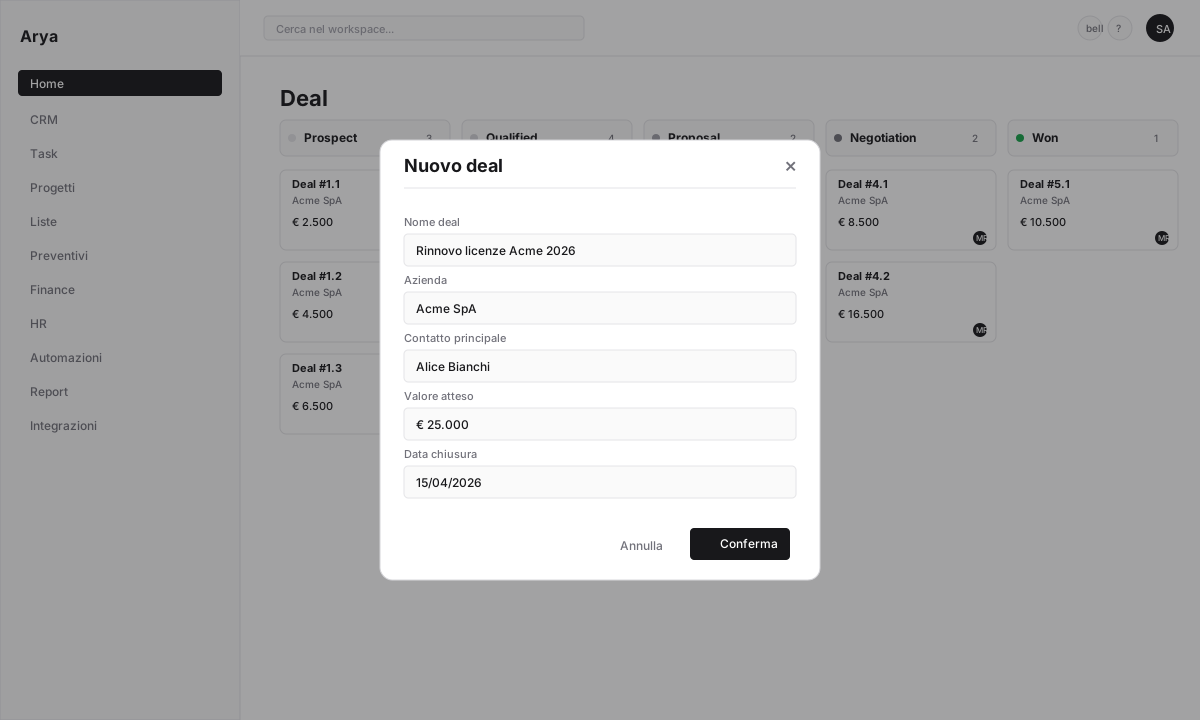
Click **+ New deal** in the top right. Fill in:
* **Deal name**: descriptive (e.g. `Acme licence renewal 2026`)
* **Company**: Arya searches the database or lets you create one
* **Primary contact**
* **Value**: expected amount
* **Estimated close date**
* **Owner**
Default stages:
1. **Prospect** — newly created opportunity
2. **Qualified** — verified lead
3. **Proposal** — quote sent
4. **Negotiation** — active negotiation
5. **Won**
6. **Lost**
Stages can be modified from **Settings → Pipeline** — add, remove, rename, define multiple pipelines (e.g. one retail, one enterprise).
## Create your first deal
Click **CRM** in the sidebar → **Deals** tab.
Click **+ New deal** in the top right. Fill in:
* **Deal name**: descriptive (e.g. `Acme licence renewal 2026`)
* **Company**: Arya searches the database or lets you create one
* **Primary contact**
* **Value**: expected amount
* **Estimated close date**
* **Owner**
 Drag the card from one column to another. Every stage change is recorded in the history.
Shortcut: left/right arrow keys move between deals in the same stage.
Click a card to open the **deal detail** with all tabs: Overview, Activity, Notes, Tasks, Contacts, Quotes, Documents.
## Link activity to the deal
From the deal detail you can:
A deal can have multiple contacts (buyer, technical decision-maker, procurement).
Calls are transcribed and summarised by AI — see [Call intelligence](/en/crm/calls-and-call-intelligence).
With Gmail connected, all emails to/from contacts appear in the timeline.
From scratch or template, with public link and digital signing.
Follow-ups, demo prep, material sending.
Rich text, @mentions, checklists.
## Close the deal
Drag the card to the final stage. Arya asks for a close reason.
If the deal has quotes or products with costs attached, Arya computes the margin and shows it in the pipeline report.
Moving to `Won` can automatically: create a project, notify Slack, send a confirmation email. See [Lesson 8 — Automations](/en/arya-101/lesson-8-automations).
## Bulk import
If you have existing deals or contacts in Excel/CSV, import them:
* **CRM → Deals → ⋯ menu → Import**
* Upload the file, map columns to fields
* Preview before import, rollback on error
## Verify
You created a deal with linked company and contact
You moved the deal across at least two stages
You added a task or note to the deal
## Next lesson
Organise work with tasks and projects, linked to the CRM.
Drag the card from one column to another. Every stage change is recorded in the history.
Shortcut: left/right arrow keys move between deals in the same stage.
Click a card to open the **deal detail** with all tabs: Overview, Activity, Notes, Tasks, Contacts, Quotes, Documents.
## Link activity to the deal
From the deal detail you can:
A deal can have multiple contacts (buyer, technical decision-maker, procurement).
Calls are transcribed and summarised by AI — see [Call intelligence](/en/crm/calls-and-call-intelligence).
With Gmail connected, all emails to/from contacts appear in the timeline.
From scratch or template, with public link and digital signing.
Follow-ups, demo prep, material sending.
Rich text, @mentions, checklists.
## Close the deal
Drag the card to the final stage. Arya asks for a close reason.
If the deal has quotes or products with costs attached, Arya computes the margin and shows it in the pipeline report.
Moving to `Won` can automatically: create a project, notify Slack, send a confirmation email. See [Lesson 8 — Automations](/en/arya-101/lesson-8-automations).
## Bulk import
If you have existing deals or contacts in Excel/CSV, import them:
* **CRM → Deals → ⋯ menu → Import**
* Upload the file, map columns to fields
* Preview before import, rollback on error
## Verify
You created a deal with linked company and contact
You moved the deal across at least two stages
You added a task or note to the deal
## Next lesson
Organise work with tasks and projects, linked to the CRM.