> ## Documentation Index
> Fetch the complete documentation index at: https://docs.arya.so/llms.txt
> Use this file to discover all available pages before exploring further.
# Lesson 4 — Lists, views and filters
> Create your first dynamic list, save a view and share it with your team.
**Lesson 4 of 10** · \~5 minutes · Prerequisite: [Lesson 3 — Attributes](/en/arya-101/lesson-3-attributes)
## What you'll learn
* The difference between **static list** and **dynamic list**
* How to save a **view** with filters and sorting
* How to share views with your team
## List, view, filter
Three separate but related concepts:
| Concept | What it does |
| ---------- | ------------------------------------------------------------------------------------- |
| **List** | A set of records from the same object, with a name |
| **View** | A way of displaying records (table, Kanban, calendar, Gantt) with filters and sorting |
| **Filter** | A condition (`value > 10000`, `status = Prospect`) applied to records or lists |
A list can have multiple views. A view is always filtered by specific criteria.
## Static vs dynamic list
**Static list** — You choose which records to include. Useful for:
* Email campaigns to hand-picked contacts
* Top customers to follow manually
* Onboarding cohorts
**Dynamic list** — Arya automatically includes every record matching a filter. The list stays live. Useful for:
* `Deals > €50k open`
* `New companies this month`
* `Overdue unpaid invoices`
## Create a dynamic list
Click **Lists** in the sidebar. Existing lists are grouped by object.
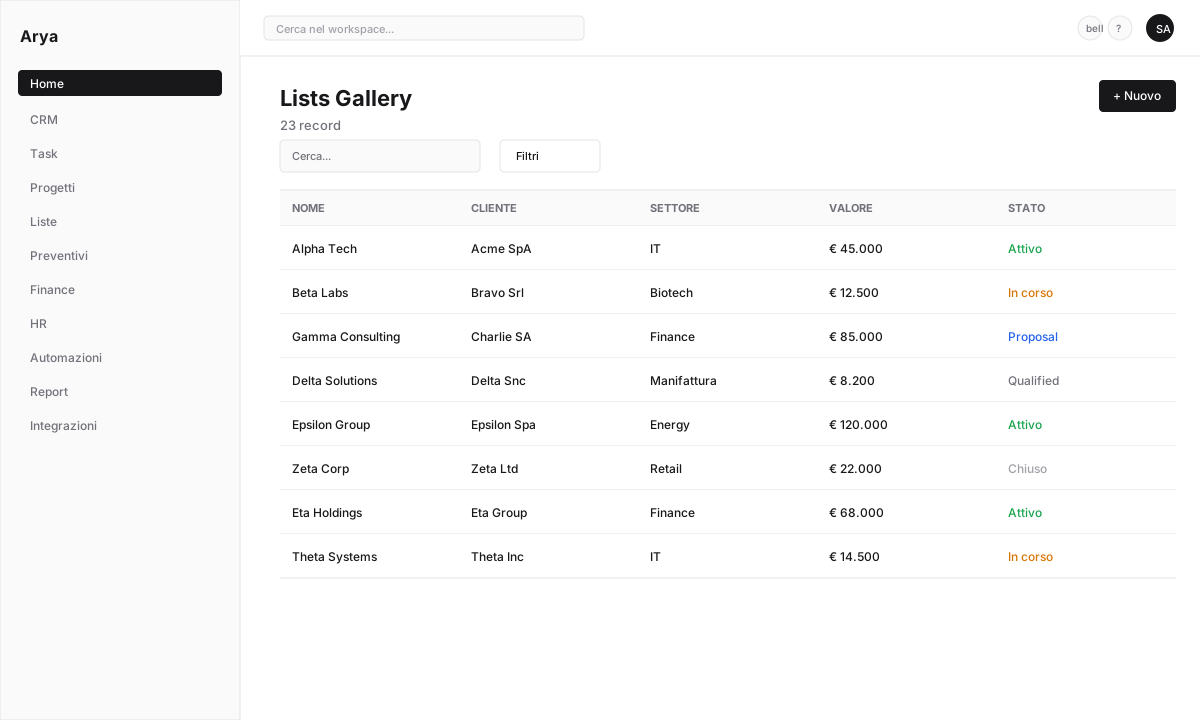 Click **+ New list**. Pick an object (e.g. `Deal`) and a name (e.g. `Hot deals Q2`).
Select **Dynamic**. Add conditions:
* `Stage = Negotiation`
* `Value > 20000`
* `Owner = me`
Arya previews the matching records immediately.
Choose which attributes appear as columns: name, company, value, stage, close date. Drag to reorder.
The list is available under **Lists** and can be pinned to the sidebar.
## Save a custom view
Besides lists, you can save views inside each module. CRM example:
Go to **CRM → Deals**. Apply filters (e.g. close date this week, owner = me).
Switch between **Kanban / Table / Calendar** from the top selector.
Click **Save view** and name it (e.g. `My weekly closes`).
Click **+ New list**. Pick an object (e.g. `Deal`) and a name (e.g. `Hot deals Q2`).
Select **Dynamic**. Add conditions:
* `Stage = Negotiation`
* `Value > 20000`
* `Owner = me`
Arya previews the matching records immediately.
Choose which attributes appear as columns: name, company, value, stage, close date. Drag to reorder.
The list is available under **Lists** and can be pinned to the sidebar.
## Save a custom view
Besides lists, you can save views inside each module. CRM example:
Go to **CRM → Deals**. Apply filters (e.g. close date this week, owner = me).
Switch between **Kanban / Table / Calendar** from the top selector.
Click **Save view** and name it (e.g. `My weekly closes`).
 A view can be **private**, **team** or **public in workspace**. Shared views stay in sync for everyone.
## Spreadsheet view
Arya's table view is **inline-editable**: click a cell to modify without opening the record. Excel-like shortcuts:
* `Tab` / `Shift+Tab`: next / previous cell
* `Enter`: commit and move down
* `Ctrl+C` / `Ctrl+V`: copy / paste
* `Shift+click`: range select for bulk edits
## Verify
You know the difference between static and dynamic lists
You created a dynamic list with filters
You saved a view and know how to share it
## Next lesson
Create a deal, drag it through the Kanban pipeline, close your first sale.
A view can be **private**, **team** or **public in workspace**. Shared views stay in sync for everyone.
## Spreadsheet view
Arya's table view is **inline-editable**: click a cell to modify without opening the record. Excel-like shortcuts:
* `Tab` / `Shift+Tab`: next / previous cell
* `Enter`: commit and move down
* `Ctrl+C` / `Ctrl+V`: copy / paste
* `Shift+click`: range select for bulk edits
## Verify
You know the difference between static and dynamic lists
You created a dynamic list with filters
You saved a view and know how to share it
## Next lesson
Create a deal, drag it through the Kanban pipeline, close your first sale.